How To Stream Local Video Files From PC To Roku TV Using VLC
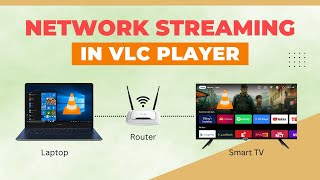
Watching movies, TV shows, or personal video collections on a larger screen can make the experience far more enjoyable. If you own a Roku TV and prefer to keep your media library on a Windows PC, VLC Media Player offers a simple and reliable way to stream those files without additional hardware. This guide walks you through the entire process, from preparing your PC to playing the video on your Roku TV.
Why Choose VLC for Roku Streaming?
- Free and open‑source – No subscription fees or hidden costs.
- Cross‑platform support – Works on Windows, macOS, and Linux.
- Built‑in streaming capabilities – No need for third‑party apps or plugins.
- Wide codec compatibility – Plays almost any video format directly.
What You’ll Need
- A PC running Windows 10 or later with VLC Media Player installed.
- A Roku TV connected to the same local network (Wi‑Fi or Ethernet) as your PC.
- An active internet connection for initial setup (not required for streaming once configured).
Step‑By‑Step Setup
1. Install and Update VLCDownload the latest version of VLC from the official website. After installation, open VLC and select Help → Check for Updates to ensure you have the most recent bug fixes and streaming features.
2. Enable the “Web” Interface in VLCThe web interface lets VLC receive commands from other devices, including your Roku TV.
- Open VLC and go to Tools → Preferences (or press Ctrl+P).
- At the bottom left, select All under “Show settings”.
- Navigate to Interface → Main interfaces and check the box for Web.
- Expand Main interfaces → Lua and set a password in the “Lua HTTP password” field (e.g., stream123). Remember this password; you’ll need it later.
- Click Save and restart VLC to apply the changes.
Open a Command Prompt (Win + R, type cmd, press Enter) and run:
ipconfigLocate the IPv4 address of the network adapter you use (it will look like 192.168.1.45). This address identifies your PC on the home network.
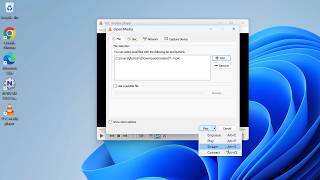
4. Add the Video File to VLC’s PlaylistDrag and drop the desired video file into VLC or use Media → Open File. Once the video appears in the playlist, right‑click it and select Stream…. This opens the streaming wizard.
5. Configure the Stream Output- In the wizard, click Next until you reach the “Destination setup” screen.
- Choose HTTP from the dropdown and click Add.
- Set the Port to 8080 (or any unused port) and leave the path blank.
- Click Next, then select the desired transcoding profile (e.g., “Video – H.264 + MP3 (MP4)”). If your file is already in a Roku‑compatible format, you can choose “Keep original video track”.
- Finish the wizard and click Stream. VLC now serves the video over HTTP.
Roku does not have a native VLC app, but you can use the built‑in Roku Media Player or any third‑party “Web Video Player” channel that accepts a URL.
- On your Roku remote, press the Home button and open Roku Media Player. If it’s not installed, add it from the Roku Channel Store.
- Select Network → Enter URL.
- Enter the streaming address using the format:
http://[PC_IP_ADDRESS]:8080/
Replace [PC_IP_ADDRESS] with the IPv4 address you noted earlier (e.g., http://192.168.1.45:8080/). Press OK and the video should begin playing on your TV.
Troubleshooting Common Issues
- Video does not start – Verify that the firewall on your PC allows inbound connections on the chosen port (default 8080). Add an exception in Windows Defender Firewall if necessary.
- Audio out of sync – Try a different transcoding profile or enable “Video – H.264 + AAC (MP4)” to ensure compatible audio.
- Roku cannot find the URL – Double‑check that both devices are on the same subnet (e.g., both start with 192.168.1.x). Restart the router if needed.
- Playback stutters – Reduce the video bitrate in VLC’s transcoding options or connect both PC and Roku via Ethernet for a more stable connection.
Enhancing the Streaming Experience
Once you’re comfortable with the basic setup, consider these optional improvements:
- Use a static IP address for your PC to avoid updating the URL after each reboot.
- Create a playlist in VLC and stream the entire list, allowing continuous playback of multiple files.
- Automate the process with a simple batch script that launches VLC with the correct streaming parameters, reducing manual steps.
Conclusion
Streaming local video files from a PC to a Roku TV using VLC is a cost‑effective solution that leverages existing hardware and free software. By enabling VLC’s web interface, configuring an HTTP stream, and accessing the stream through Roku Media Player, you can enjoy your personal media library on the big screen with minimal latency. Follow the steps outlined above, troubleshoot any connectivity hiccups, and you’ll have a reliable streaming setup ready for movie nights, family gatherings, or everyday viewing.