Understanding the Epic Games Store on Android
The Android ecosystem is known for its openness, allowing users to install applications from sources beyond the official Google Play Store. While many users are accustomed to a singular storefront, Epic Games has established its own platform to distribute its library of titles directly to mobile users. Installing the Epic Games Store on your Android tablet is a straightforward process, though it requires a few manual steps because the application is not listed in the standard Google-managed store.
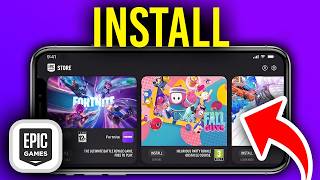
By installing the Epic Games Store, you gain access to a curated selection of games, including popular titles like Fortnite and Fall Guys, as well as various indie projects. Because you are downloading an installer file directly from the developer, it is essential to ensure you are visiting the official website to maintain the security and integrity of your device.
Preparing Your Tablet for Installation
Before you begin the download, your Android tablet needs to be configured to accept applications from unknown sources. Modern versions of Android include a security feature that blocks the installation of APK files—the standard format for Android applications—if they originate from a web browser or a third-party file manager. To adjust this, navigate to your tablet's Settings menu. Look for the Security or Privacy section. Within these settings, find the option labeled Install Unknown Apps or External Sources. You will need to grant permission to the specific browser you intend to use to download the installer, such as Chrome or Firefox.
It is also a good practice to ensure your tablet has sufficient storage space. While the initial installer is relatively small, the games hosted on the store can vary significantly in size. Checking your available storage in your device settings will help prevent installation errors once you begin downloading your preferred titles.
Downloading the Official Installer
Once your settings are prepared, open your web browser and navigate to the official Epic Games website. Avoid third-party websites or unofficial mirrors, as these can pose a security risk. On the main page, you should see a clear option to download the Epic Games app for Android. Clicking this will initiate the download of an APK file.
Your browser may display a warning message stating that files of this type can harm your device. This is a standard security prompt for any file downloaded outside of the Google Play Store. As long as you are on the official Epic Games domain, you can safely proceed by selecting the option to download anyway. Once the progress bar completes, you can tap the notification or navigate to your Downloads folder to launch the installer.
Completing the Setup Process
After launching the downloaded file, your tablet will prompt you to confirm the installation. Tap the Install button. The system will process the package, and once complete, you will see an Open button. Tapping this will launch the Epic Games Store interface for the first time.
Upon opening the app, you will be prompted to sign in to your Epic Games account. If you do not have an account, you can create one directly through the app. Signing in is necessary to sync your game library, progress, and social features across different devices. Once logged in, the store interface will display available games. You can browse the catalog, select the titles you wish to play, and tap the install button for each specific game.
Managing Your Games and Updates
Once you have installed your desired games, you can manage them directly through the Epic Games Store app on your tablet. The store handles updates automatically, ensuring that your titles remain current without needing to manually download new APK files every time a patch is released. If you encounter any performance issues or need to free up space, you can also manage or uninstall games through the store's library tab.
Keep in mind that some high-fidelity games may require a stable internet connection and a tablet with modern hardware specifications to run smoothly. If you experience lag or crashes during gameplay, check the game's specific requirements within the store and ensure your tablet's operating system is updated to the latest available version provided by the manufacturer. By keeping both the Epic Games Store and your system software updated, you ensure the most stable and secure gaming experience on your Android tablet.