Introduction to the Epic Games Store on Android
The Epic Games Store has become one of the most popular platforms for PC gamers, offering exclusive titles and competitive pricing. While originally designed for desktop computers, Epic Games has expanded its store to Android devices, allowing mobile gamers to access the same great selection of games. If you're wondering how to install the Epic Games Store on your Android device, this guide will walk you through the complete process step by step.
Checking Device Compatibility
Before installing the Epic Games Store, it's important to verify that your Android device meets the minimum requirements. The store requires Android 8.0 Oreo or higher, so check your device's settings to confirm your operating system version. Additionally, you'll need sufficient storage space, as games available through the store can be quite large. Most modern Android devices from reputable manufacturers will work perfectly with the Epic Games Store.
Downloading the Epic Games Store App
Unlike some apps, the Epic Games Store isn't available through the Google Play Store. This means you'll need to download it directly from Epic Games' official website. Open your preferred web browser on your Android device and navigate to the Epic Games Store download page. You'll find the APK file ready for download. Tap the download button and wait for the file to complete downloading to your device.
Enabling Unknown Sources
Since you're installing an app from outside the Google Play Store, you'll need to enable installations from unknown sources. Go to your device's Settings menu, then navigate to Security or Biometrics and Security. Look for the option labeled "Install unknown apps" or "Unknown sources." Select your browser or file manager app from the list, and toggle on the permission to allow installations. This step is crucial for completing the installation process safely.
Installing the Epic Games Store
Once you've enabled unknown sources, locate the downloaded APK file. This will typically be in your Downloads folder or notification panel. Tap on the file to begin the installation process. Your device will show you the app permissions it requires - these are standard for a game launcher. Review them and tap "Install" to proceed. The installation should complete within a few minutes, depending on your device's speed.
Creating or Logging Into Your Account
After the installation finishes, open the Epic Games Store app. You'll be prompted to either sign in to your existing Epic Games account or create a new one. If you already have an account from playing on PC or other platforms, sign in with your credentials. For new users, follow the registration process, which involves providing basic information and verifying your email address. This account will sync your progress across all platforms.
Exploring the Store Features
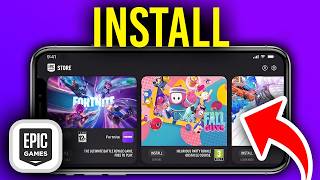
Once logged in, you'll see the main interface of the Epic Games Store on Android. The layout is similar to the desktop version, with featured games at the top and various categories below. You can browse by genre, check out weekly deals, or access your library of previously purchased games. The store regularly adds new titles and offers, so it's worth checking back periodically for great deals on mobile-friendly games.
Downloading Your First Game
With the store installed and account set up, you can start downloading games. Browse through the available titles or use the search function to find specific games. When you find a game you want, tap the download button. Depending on the game's size and your internet connection, downloads may take several minutes to complete. Some games may also offer additional downloadable content that you can purchase separately.
Troubleshooting Common Issues
If you encounter any problems during installation, there are a few solutions to try. If the app won't install, double-check that you've enabled unknown sources properly. If games won't download or update, ensure you have a stable internet connection and sufficient storage space. Clearing the app's cache through your device's app settings can sometimes resolve performance issues. If problems persist, try restarting your device and reinstalling the app.