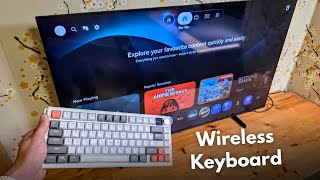
How to Connect a Bluetooth Keyboard to an Older Samsung Smart TV
Older Samsung Smart TVs don’t always advertise Bluetooth as a built‑in feature, but many models from the early 2010s support wireless peripherals through a hidden Bluetooth stack. If you want to type faster, browse the web, or search for movies without using the remote, a Bluetooth keyboard can be a game‑changer. This guide shows you a quick, step‑by‑step method to pair a wireless keyboard with your Samsung TV, even if the manual doesn’t mention it.
What You Need Before You Start
- Bluetooth keyboard – any standard Bluetooth or wireless (USB dongle) keyboard will work.
- Samsung TV remote – you’ll use it to navigate the TV’s menus.
- Internet connection – for firmware updates that may unlock Bluetooth support.
- Patience – older models sometimes require a few extra steps.
Step 1: Verify That Your TV Supports Bluetooth
Do you know, that you can use a wireless keyboard with many Samsung Smart TVs? Not all models expose the Bluetooth option in the settings menu, but you can check it quickly:
- Press the Home button on the remote.
- Navigate to Settings > General > External Device Manager.
- If you see a Bluetooth Device List option, the TV already has Bluetooth enabled.
If the option is missing, you may need to update the TV’s firmware. Go to Settings > Support > Software Update and install any available updates. After the TV restarts, re‑check the Bluetooth menu.
Step 2: Put Your Keyboard in Pairing Mode
Most Bluetooth keyboards have a dedicated pairing button or a key combination (often Fn + Bluetooth or a dedicated “Connect” switch). Follow the manufacturer’s instructions to activate pairing mode. You should see a flashing LED indicating that the keyboard is discoverable.
Step 3: Add the Keyboard to the TV
- Return to the Bluetooth Device List on the TV.
- Select Search for Devices. The TV will scan for nearby Bluetooth peripherals.
- When your keyboard appears in the list, highlight it and choose Connect.
- If prompted for a PIN, the TV will display a numeric code. Type that code on the keyboard and press Enter.
Once the connection is successful, the TV will show a confirmation message such as “Keyboard connected.” You can now use the keyboard to navigate menus, type search queries


![Connect Keyboard and Mouse to Samsung Smart TV! [How To]](https://i.ytimg.com/vi/J1soF9YqCxw/mqdefault.jpg)